Account and billing
This page shows where to manage your profile, plan, payment and data, and how to switch plans, buy a top-up or cancel.
Open your account
Click your name at the bottom of the sidebar. Your account has four tabs: General, Plan & Billing, Data & privacy and Developers.
General
The General tab shows your account name and email. It says "Signed in with Google" and has a Manage link to your Google Account, where your password and two-step verification live. Under Session, click Sign out to sign out of this browser.
Plan & Billing
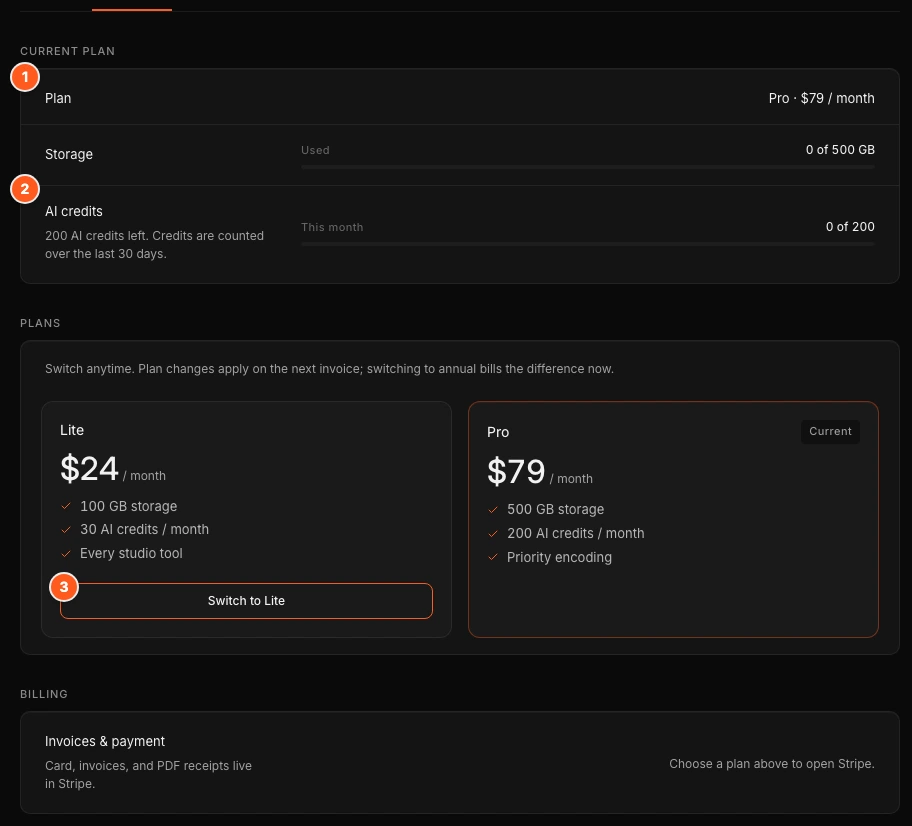
The Plan & Billing tab has three parts:
- Current plan: your plan and price, Storage, AI credits, and AI top-ups. During a trial, a Trial pill sits next to the price and the line "Trial · N days left" shows below Plan.
- Plans: the Lite and Pro tiles.
- Billing: Invoices & payment with the Manage billing button.
Switch plans
Click Switch to Pro or Switch to Lite on the tile. If you are not on a plan yet, or your plan has ended, the buttons read Start Lite and Start Pro. They open Stripe's secure checkout page, where you add your card. When you come back, the tab says "Billing updated. Limits below are for your current plan." If you leave Stripe without finishing, it says "Checkout was canceled. Your current plan is unchanged."
- Plan changes apply on the next invoice.
- Switching during a trial keeps your trial. The note reads "A card is required to start the trial. You are not charged until it ends. Switching keeps your trial."
- If you see a Monthly and Annual switch, pick your billing period first. Annual · 2 months free charges 10 months for 12. Switching to annual bills the difference now and starts a new yearly period.
What changes when you move between plans is in Plans and limits.
Buy an AI top-up
In Current plan, the AI top-ups row has an Add 10 hours · $15 button. It opens Stripe Checkout. The purchase adds 100 credits once Stripe confirms the payment. Top-up credits do not expire, and OhPlayer spends them after your monthly credits. You need an active plan or trial. Without one the row says "Start a plan to buy top-ups." See Credits explained.
Payment, invoices and cancelling
Click Manage billing to open Stripe. There you can update your card, download invoices and PDF receipts, and cancel your plan. Stripe handles card details and tax, and OhPlayer does not store your card.
- Cancel during the trial: your card is charged when the trial ends. Update it or cancel in Stripe before then.
- Cancel a paid plan: you keep access until the end of the period you paid for. After that, a banner shows on every page, uploading, AI edits and publishing pause, and published videos keep playing for 3 more days. See When your plan ends.
- A payment failed: the banner says "Your last payment didn’t go through." Click Update card in the banner, then update the card in Stripe.
Data & privacy
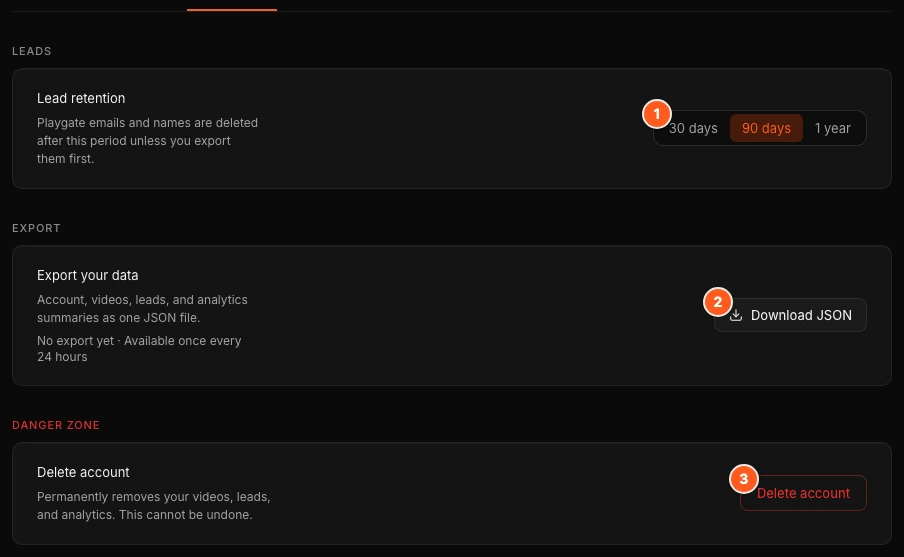
The Data & privacy tab has:
- Lead retention: choose 30 days, 90 days or 1 year. The default is 90 days. Playgate emails and names are deleted after this period unless you export them first.
- Export your data: click Download JSON for one file with your account, videos, leads and analytics summaries. You can export once every 24 hours.
- Delete account: in the Danger zone. See Delete a video or account.
More on what OhPlayer keeps and for how long is in Data, privacy and cookies.
Developers
The Developers tab is where you create API keys for MCP clients, Zapier or your own scripts. See API keys and MCP.
Next steps
Was this page helpful?
Your answer stays in your browser. Nothing is sent to us or to anyone else.