AI edit
AI edit cuts your video, adds on-screen text and zooms, and turns on captions, then lets you check the result before anything goes live.
Before you start
- Your video must be Ready in the Library. See Why is my video still processing? if it is not.
- AI edit works on videos up to 60 minutes long. Longer videos stop with the message "Automatic editing is supported only for sources up to 60 minutes."
- OhPlayer needs the words of your video first. If the video has no captions yet, AI edit asks to listen to it (see step 2).
- You can run one AI edit render at a time on your account. If you start a second, you see "One automatic edit at a time. Wait for your current edit to finish, then try again."
- AI edit changes cuts, text on screen, zoom and captions. It does not change the footage itself. Your own CTAs and lead forms (playgates) stay exactly as you set them.
Your first video starts by itself
The first time you open the video you added in onboarding, a card says Your AI edit starts in a moment. The AI edit starts on its own as soon as captions are ready, in the look your goal picked (Bold for a sales video, Clean for the others). Click Start now to open AI edit straight away, or Not now to skip it. It never starts over an AI edit you already have, and nothing is rendered until you click Looks good — make it.
Open AI edit
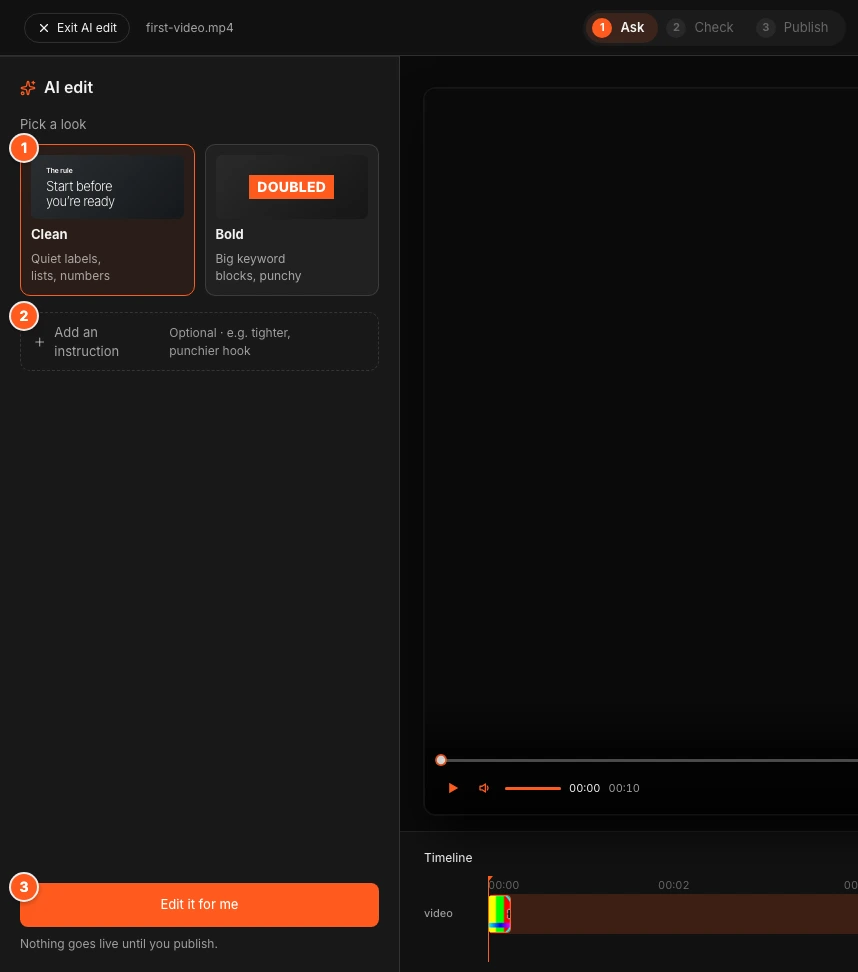
Open a video in the Studio and click AI edit in the top bar. The Studio switches to a focus view with three steps across the top: Ask, Check and Publish. Click Exit AI edit at any time to go back to the normal Studio.

Pick a look and ask
Under Pick a look, choose one:
- Clean: quiet labels, lists and numbers. This is the default.
- Bold: big keyword blocks, punchy.
Click Add an instruction if you want to steer the edit. The box is labelled Anything specific? and takes up to 1,000 characters, for example "land the result in the first 5 seconds". The chips Tighter, Punchier hook and 60s for social add a common instruction for you. The instruction is optional.
Click Edit it for me. Under the button the panel says "Nothing goes live until you publish."
If your video has no captions, a dialog titled Listen to this video first opens. It shows how many AI credits listening costs and how many you have left. Click Listen and continue to transcribe the video and start the edit, or I already have captions to open the Captions tool instead.
Wait for the plan
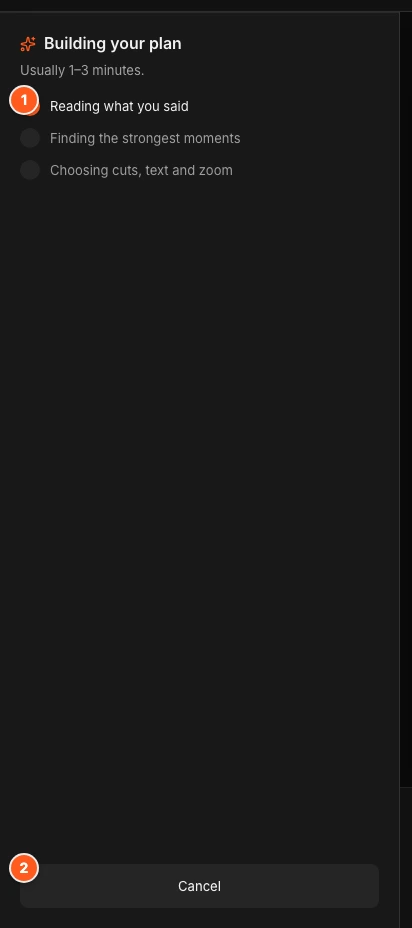
The panel title changes to Building your plan and says "Usually 1–3 minutes." Three lines tick along: "Reading what you said", "Finding the strongest moments" and "Choosing cuts, text and zoom". Click Cancel to stop and go back to Ask.
Check the edit
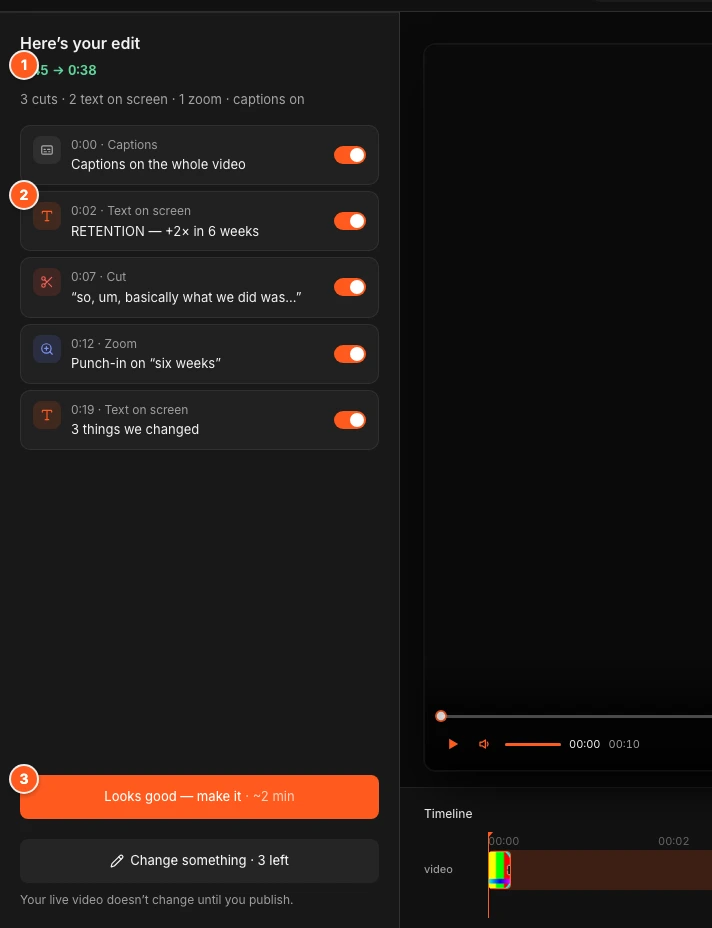
The panel shows Here's your edit with the new length, for example "0:45 → 0:38", and a count of what it did: cuts, text on screen, zooms and captions.
Below is a list of every change with its time. Click a row to jump the player to that moment. The player previews the edit live: skipped parts are cut, and text and zooms are drawn on the video.
Each row has a switch. Switch a change off to leave it out. Rows marked Kept are your own CTAs and lead forms, which the edit leaves as you set them.
Change something (optional)
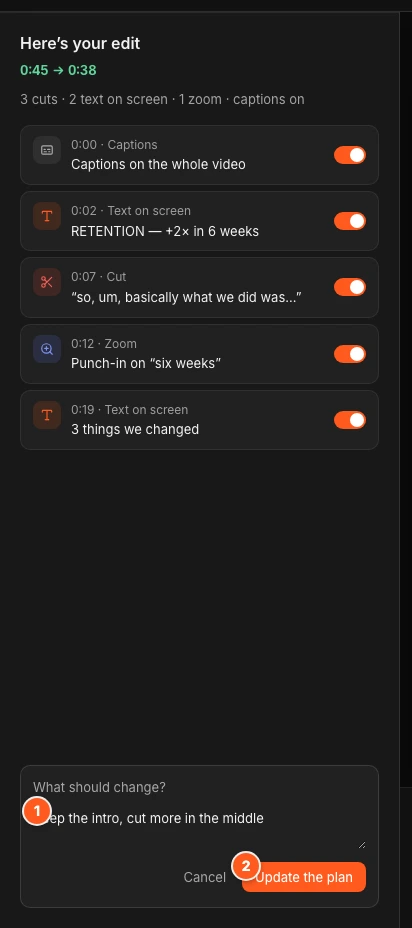
Click Change something and describe what should be different, for example "keep the intro, cut more in the middle". Click Update the plan. The panel says Updating your plan and usually finishes in under a minute. If the update fails, your current edit stays.
You get 3 changes per edit. The button shows how many are left ("Change something · 3 left"). When they are used up the button is locked, and you can still switch changes off in the list.
If the request asks for something AI edit cannot do, you see Can't do that one with the reason. That request does not use up a change.
Make it
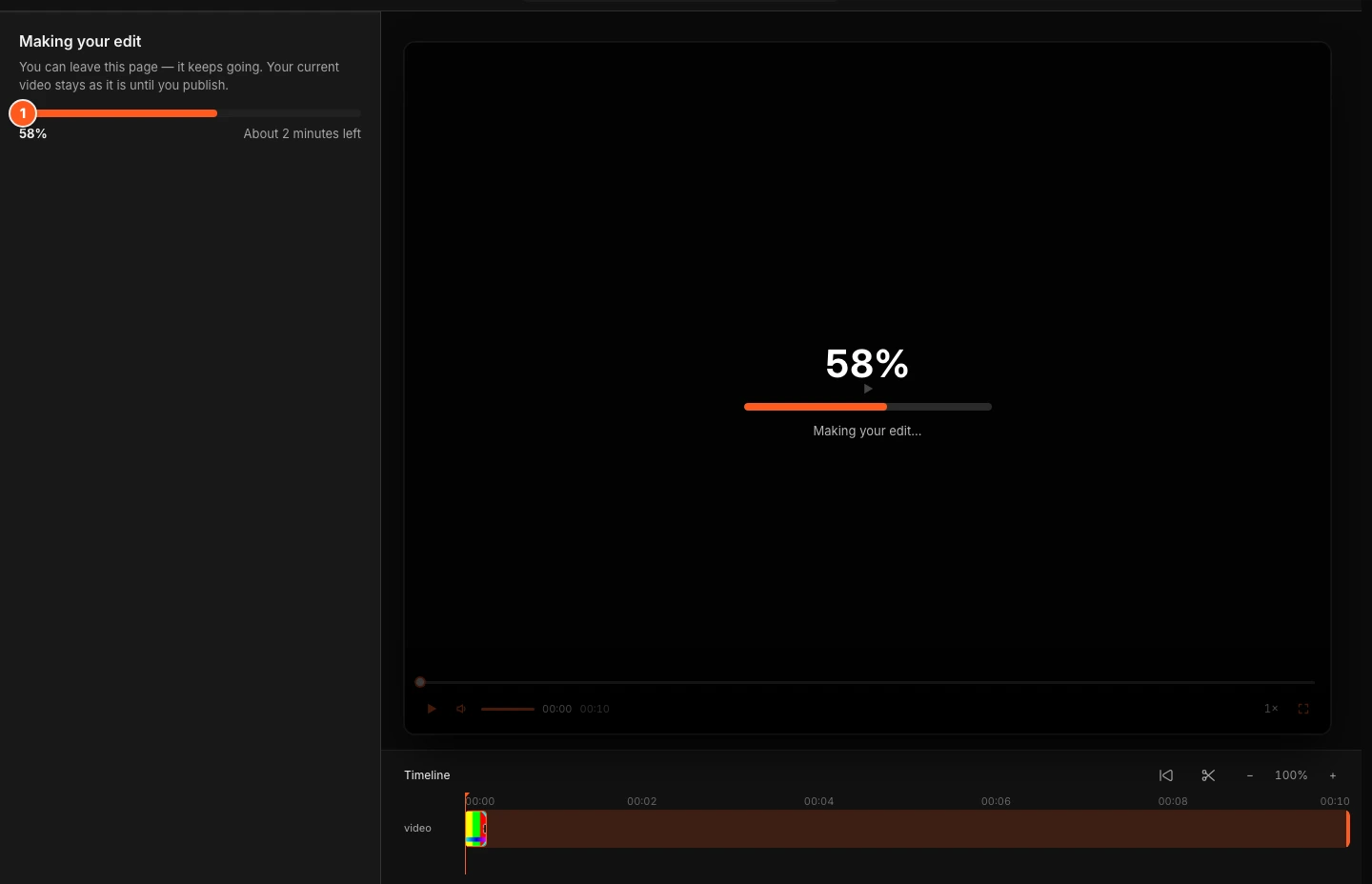
Click Looks good — make it. The button shows a time estimate, for example "~2 min". The panel changes to Making your edit with a progress bar and the time left.
You can leave the page. The edit keeps going, and your live video does not change. When it is done, OhPlayer emails you a link to review it.
Publish, keep or discard
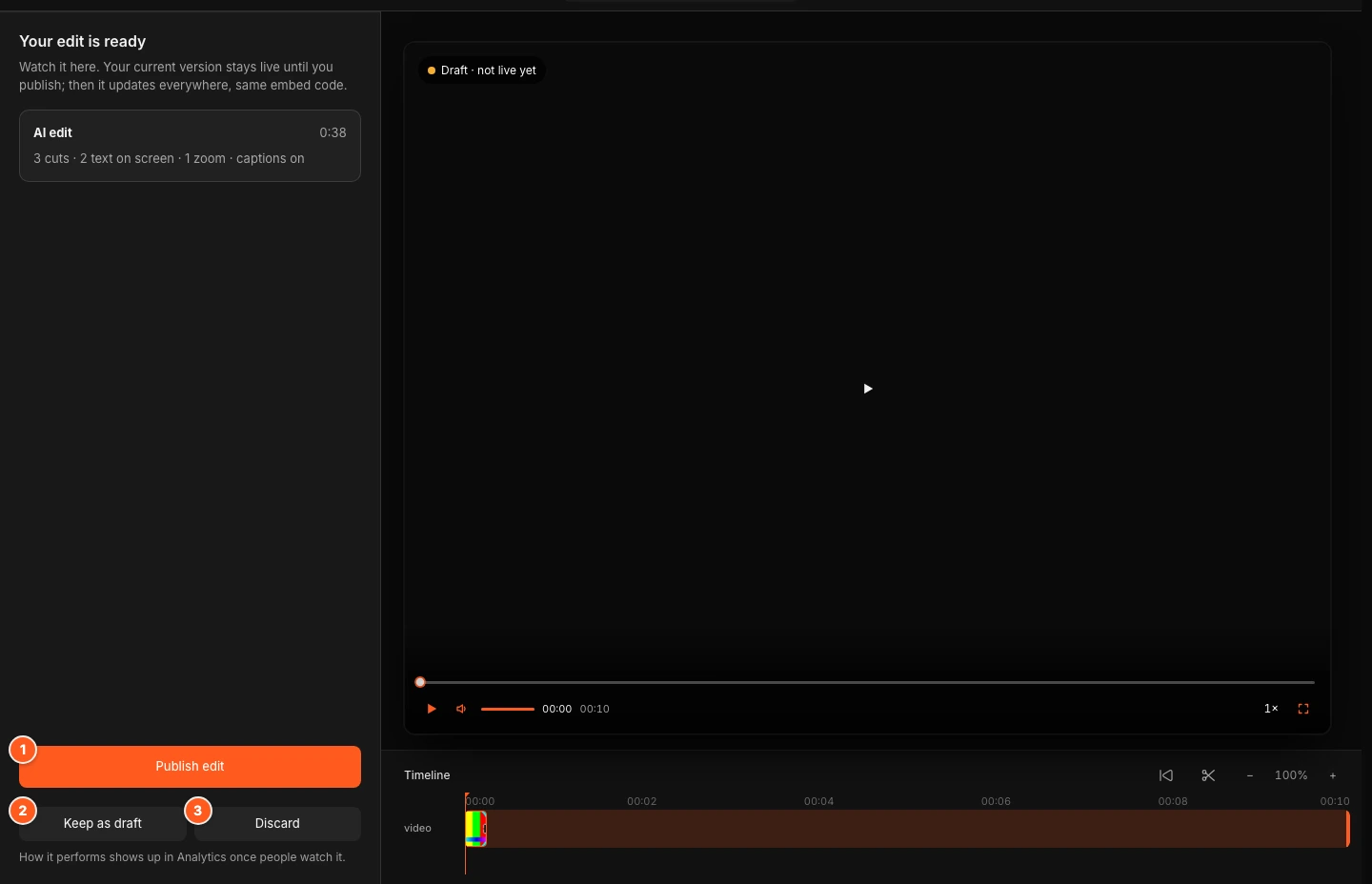
When the edit is ready, the panel says Your edit is ready. The video shows a "Draft · not live yet" badge so you can watch it first. Then pick one:
- Publish edit puts the edit live. Every embed of this video serves it. The embed code does not change.
- Keep as draft leaves the edit unpublished. Find it later in Version history.
- Discard drops the edit and keeps your current live video.
If you are on the free preview, publishing starts your 14-day trial. Share asks you to pick Pro or Lite and add your card on Stripe's secure page. See Start your trial to publish.
Come back to an edit later
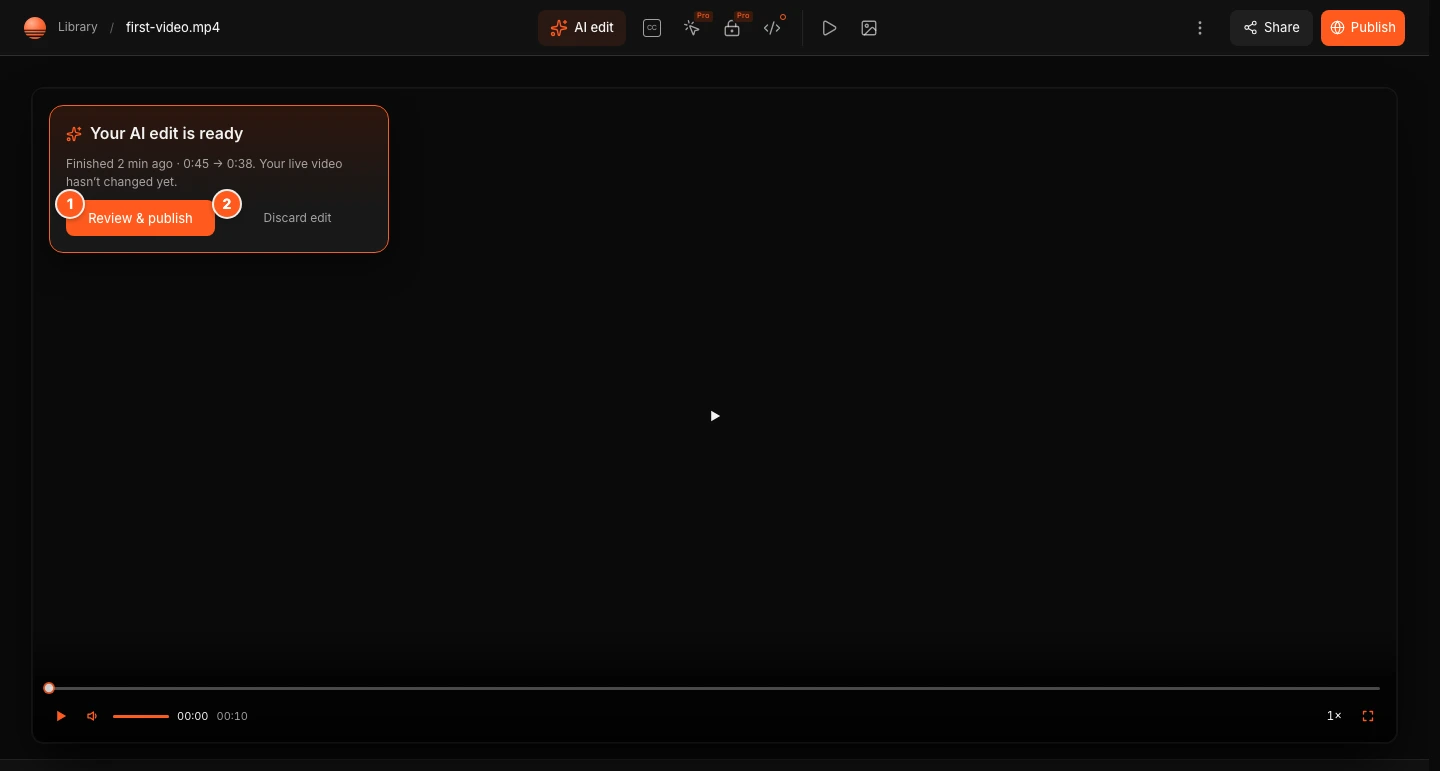
If you leave while an edit is rendering, the Studio takes you back to its progress when you return. If a finished edit is waiting, a card over the video says Your AI edit is ready with Review & publish and Discard edit.
When the live version is already an AI edit, opening AI edit shows Your AI edit is live. Click Change something to reopen its plan, or Start a new edit to begin again from the original.
Credits
AI edit uses AI credits from your plan.
- A credit covers 6 minutes of video (10 credits per hour), rounded up, with a minimum of 1. The charge follows the length of your original video, not the shorter result.
- Listening to a video that has no captions and making the edit together count as one charge for that video.
- Building a plan is free for your first 6 tries per video each day. After that each plan or change costs 1 credit.
- If a plan cannot be built, you are not charged. If the render fails, the credits for that edit are returned.
- Credits are counted over the last 30 days.
Your remaining credits show in the usage card in the sidebar. For the full rules, see Credits explained.
If something goes wrong
Your live video is never touched by a failed edit, and OhPlayer keeps your choices so you can try again.
The plan could not be built
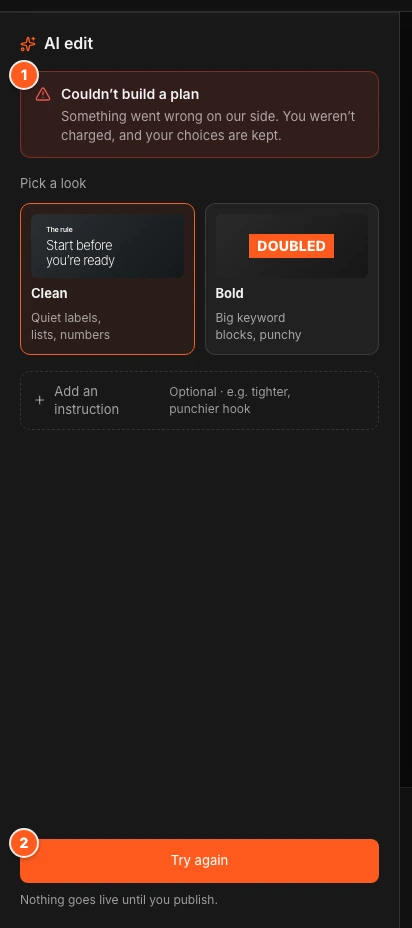
The Ask step shows Couldn't build a plan, the reason, and "You weren't charged, and your choices are kept." The main button changes to Try again.
You are out of credits
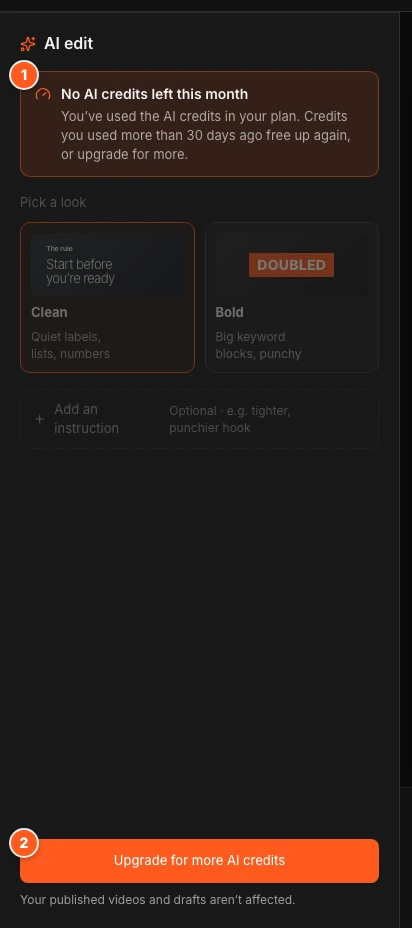
The Ask step shows No AI credits left this month: "You've used the AI credits in your plan. Credits you used more than 30 days ago free up again, or upgrade for more." Click Upgrade for more AI credits to open billing. Your published videos and drafts are not affected.
The render failed
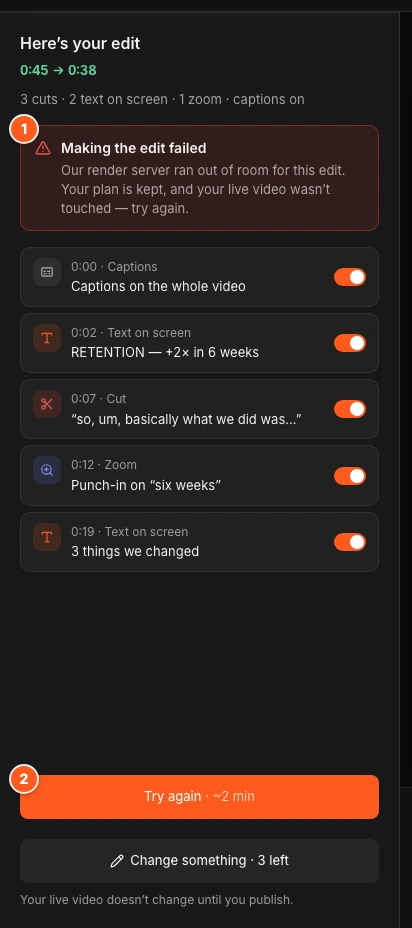
The Check step shows Making the edit failed and a reason. Your plan is kept, so click Try again.
| Reason shown | What it means |
|---|---|
| Our render server ran out of room for this edit. | Try again. |
| The render took too long and was stopped. | Try again. |
| The render was interrupted when our render server restarted. | Try again. |
| We couldn't read part of the source video. | Re-upload the video, then start a new edit. |
| Something went wrong on our side while rendering. | Try again. If it keeps failing, contact support@ohplayer.com. |
If the edit could not be started at all, you see Couldn't start the edit with the reason, and your plan is kept.
Next steps
Was this page helpful?
Your answer stays in your browser. Nothing is sent to us or to anyone else.