Credits explained
This page explains what AI credits are, what spends them, and what to do when you run out.
What a credit is
10 credits cover one hour of video. In other words, 1 credit covers 6 minutes of video. The count is rounded up for each video, and the minimum is 1 credit.
| Video length | Credits |
|---|---|
| Up to 6 minutes | 1 |
| 7 minutes | 2 |
| 20 minutes | 4 |
| 60 minutes | 10 |
Your allowance
| Credits | |
|---|---|
| Free preview | 5 |
| Trial | 20 (2 hours) |
| Lite | 30 per month (3 hours) |
| Pro | 200 per month (20 hours) |
The trial and free preview allowances lift or change when you start a plan.
What spends credits
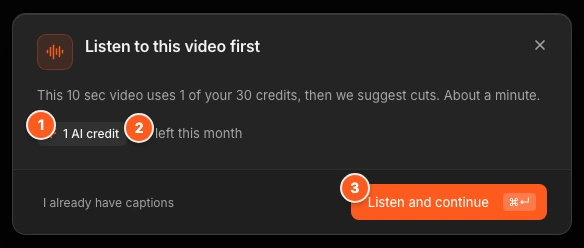
Listening. When OhPlayer transcribes your video, for captions or before an AI edit, it costs one video's worth of credits. You are charged when the transcript is ready. Before it starts, the Listen to this video first dialog shows the cost and how many credits you have left.
Making an AI edit. Making the edit costs one video's worth of credits. If you already paid to listen to that video in the last 30 days, making the edit costs nothing extra. So an AI edit on a video with no captions costs one video's worth in total, not two.
Asking for a plan or changes. Building a plan and asking for changes are free for the first six requests on a video in any 24 hours. After that, each request costs 1 credit.
Publishing, playback and analytics never spend credits.
When credits come back
If the AI cannot build a plan, you are not charged and your choices are kept. If the edit fails while it renders, the credits for it are returned.
Credits are counted over the last 30 days
Your monthly allowance is a rolling 30-day window. A credit you spend frees up again 30 days later. You do not need to wait for a calendar month.
For example, you are on Lite with 30 credits. You spend 10 on 1 March and 20 on 5 March. You have none left until 31 March, when the first 10 free up.
Top-up credits are separate. They never expire, and OhPlayer spends them only after your monthly credits run out.
Where to see your credits
Click the storage ring at the bottom of the sidebar. The card shows AI credits left, for example "26 of 30", and a link to Plan & Billing.
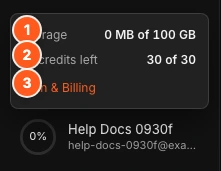
Account → Plan & Billing has an AI credits row with a meter and the line "Credits are counted over the last 30 days." If you have a top-up, the row says "top-ups included".

When you start an AI edit on a video with no captions, the Listen to this video first dialog shows the cost as a chip, for example "2 AI credits", and how many you have left.
When you run out
The AI edit panel shows the notice No AI credits left this month: "You've used the AI credits in your plan. Credits you used more than 30 days ago free up again, or upgrade for more." The main button becomes Upgrade for more AI credits.
You have three options:
- Wait. Credits free up as they pass 30 days.
- Buy a top-up. Open Account → Plan & Billing and click Add 10 hours · $15. That adds 100 credits. They are added once Stripe confirms the payment. You need an active plan or trial to buy one.
- Upgrade. Pro has 200 credits a month.
If an AI request stops with "AI allowance reached. Buy a top-up, upgrade your plan, or try again later.", the same three options apply.
Next steps
Was this page helpful?
Your answer stays in your browser. Nothing is sent to us or to anyone else.