- Pro
Track sales per video
This page shows how to send paid orders from Stripe or Shopify to OhPlayer, so Analytics shows which video made each sale.
OhPlayer gives you one private URL for your account. You paste it into your checkout. Each paid order arrives with the details needed to credit a video, and then appears as Purchases in Analytics with revenue per currency. OhPlayer keeps the amount, currency, order id and attribution. It does not store card data or the buyer's email.
Open the Postback URL page
Click Integrations in the sidebar, then click Postback URL under Sales & ads. The page is titled Track sales per video.
Copy your postback URL
Under Copy your postback URL, click Copy, or click Copy postback URL at the top right.
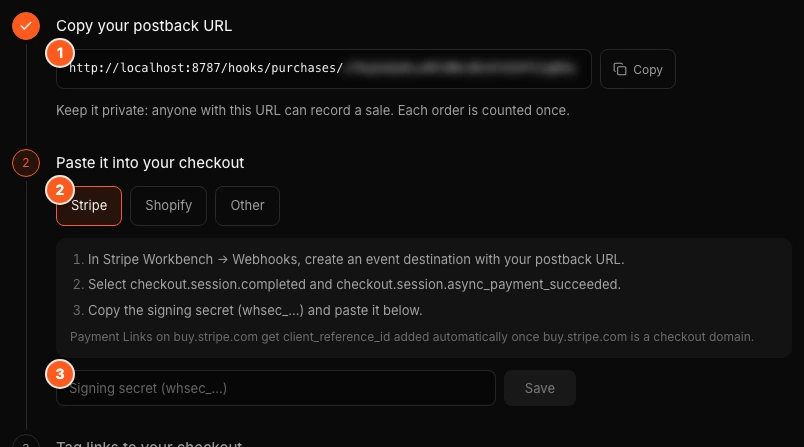
Keep the URL private. Anyone who has it can record a sale. Each order is counted once.
Paste it into your checkout
Pick your checkout with the chips under Paste it into your checkout.
- In Stripe, open Workbench → Webhooks and create an event destination with your postback URL.
- Select the events
checkout.session.completedandcheckout.session.async_payment_succeeded. - Copy the signing secret. It starts with
whsec_. - Paste it into the Stripe signing secret field in OhPlayer and click Save.
- In the Shopify admin, open Settings → Notifications → Webhooks and create a webhook for Order payment, in JSON format, with your postback URL.
- Copy the signing key shown under the webhook list.
- Paste it into the Shopify signing secret field in OhPlayer and click Save.
Send a POST (JSON or form) or a GET to your postback URL after each paid order, with these fields: order_id, amount (for example 49.00), currency (for example USD) and email. Add ohp_v when your checkout can read the viewer key from the page URL.
Tag your checkout links
Under Tag links to your checkout, type the domain your buy buttons point to, for example pay.yourbrand.com, and click Add. You can add up to 10 domains.
On pages with your OhPlayer embed, links and forms that point to these domains get the viewer key added automatically. Without a viewer key, OhPlayer can only match a sale to a video by the buyer's email.
Send a test sale
Click Send test sale. The order appears under Recent sales marked Test. Test sales never count in Analytics. Real orders show Viewer key, Matched by email or Not attributed.
How a sale is credited to a video
OhPlayer credits a sale in this order:
- Viewer key. The buyer's browser played the video in the last 30 days, and the checkout passed back the viewer key.
- Buyer's email. The email matches a lead captured from a video in the last 30 days.
- Not attributed. The sale still counts in Purchases, listed as unattributed.
For Stripe Payment Links (buy.stripe.com), add buy.stripe.com as a checkout domain and OhPlayer adds the client_reference_id for you. For Shopify, the key is added to cart links that start with /cart/. Other Shopify orders are matched by email.
Pass the viewer key yourself
If you build your own checkout, read the studio_vid cookie on your page and send it with the order. In Stripe Checkout, put it in metadata as ohplayer_viewer, or in client_reference_id. In Shopify, add a cart attribute named ohplayer_viewer. You can also add ohplayer_video with the video id.
What you see in Analytics
Paid orders appear on the Purchases card, with revenue per currency. Sales are recorded on every plan. On Lite the card shows only the count and "Revenue on Pro", and the revenue and the video each sale is credited to stay hidden until you upgrade. See Analytics explained.
Next steps
Was this page helpful?
Your answer stays in your browser. Nothing is sent to us or to anyone else.