Playback settings
Playback settings control how your video starts, what viewers can do while it plays, and how the player looks.
Open the Playback panel
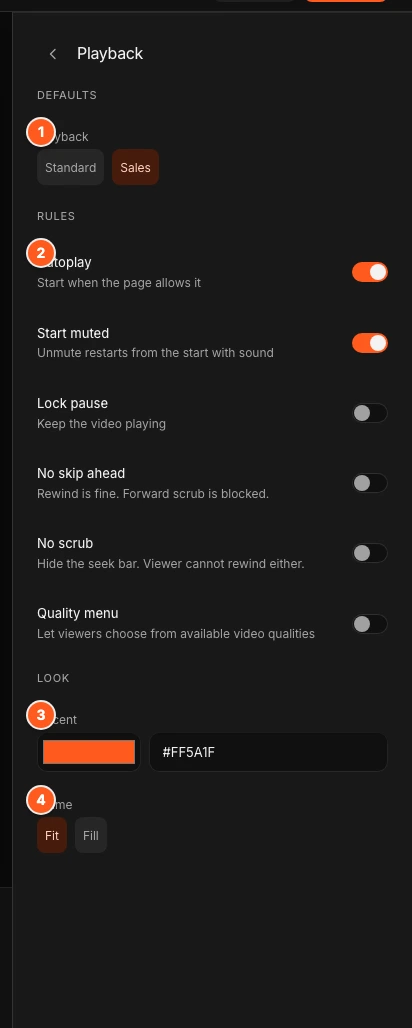
Click Playback in the Studio tool dock, or press P. The panel has three parts: Defaults, Rules and Look.
Changes save as a draft and go live when you click Publish. See Publish and share.
Presets
Under Defaults, two buttons set autoplay and muted start in one click.
| Preset | Autoplay | Start muted |
|---|---|---|
| Standard | Off | Off |
| Sales | On | On |
A preset only sets those two switches. You can change any switch afterwards. A preset shows as selected only while the two switches match it.
Rules
Each rule is a switch.
| Switch | What it does |
|---|---|
| Autoplay | Starts the video when the page allows it. |
| Start muted | The video starts without sound. The first time a viewer unmutes, the video restarts from the beginning with sound. |
| Lock pause | Viewers cannot pause. |
| No skip ahead | Viewers can rewind, but cannot jump forward past where they have watched. |
| No scrub | Viewers cannot use the seek bar at all. It is greyed out. They cannot rewind either. |
| Quality menu | Adds an HD button so viewers can choose a video quality. |
No scrub also turns on No skip ahead. Turning No skip ahead off turns No scrub off.
Autoplay is up to the browser
Browsers block autoplay with sound, so use Start muted with Autoplay. Autoplay is also off for viewers whose device asks to reduce motion or to save data. They see a play button instead.
The Quality menu lists Auto and the resolutions that are ready. New videos publish a low resolution first, so the higher ones appear a little later.
Look
- Accent
- The colour of the player’s controls. Pick a colour or type a hex code. The default is orange.
- Frame
- Fit shows the whole video, with bars if its shape differs from the player. Fill fills the player and crops the edges. The player itself is always 16:9.
Tips
- Use Lock pause for a page video you want watched through.
- Use No skip ahead for a pitch where rewinding is fine.
- Use No scrub only when a forced linear watch is the point.
Next steps
Was this page helpful?
Your answer stays in your browser. Nothing is sent to us or to anyone else.