Connect an AI assistant
This page shows how to connect Cursor, Claude Code or another MCP tool to your OhPlayer account, so you can ask it to list videos, read analytics and publish.
Connecting works on Lite and Pro. You need an API key first. A key gives the tool full access to your account, so create one per tool and revoke it when you stop using it. See API keys and MCP.
Create an API key
Open Account → Developers, type a name such as "Cursor", click Create key and copy the secret. Never share the key or paste it in a public place. Everywhere below, replace <YOUR_API_KEY> with your secret.
Open the setup page
Click Integrations in the sidebar, then choose Cursor, Claude Code or Any MCP client under AI assistants. The page shows the exact text to copy.
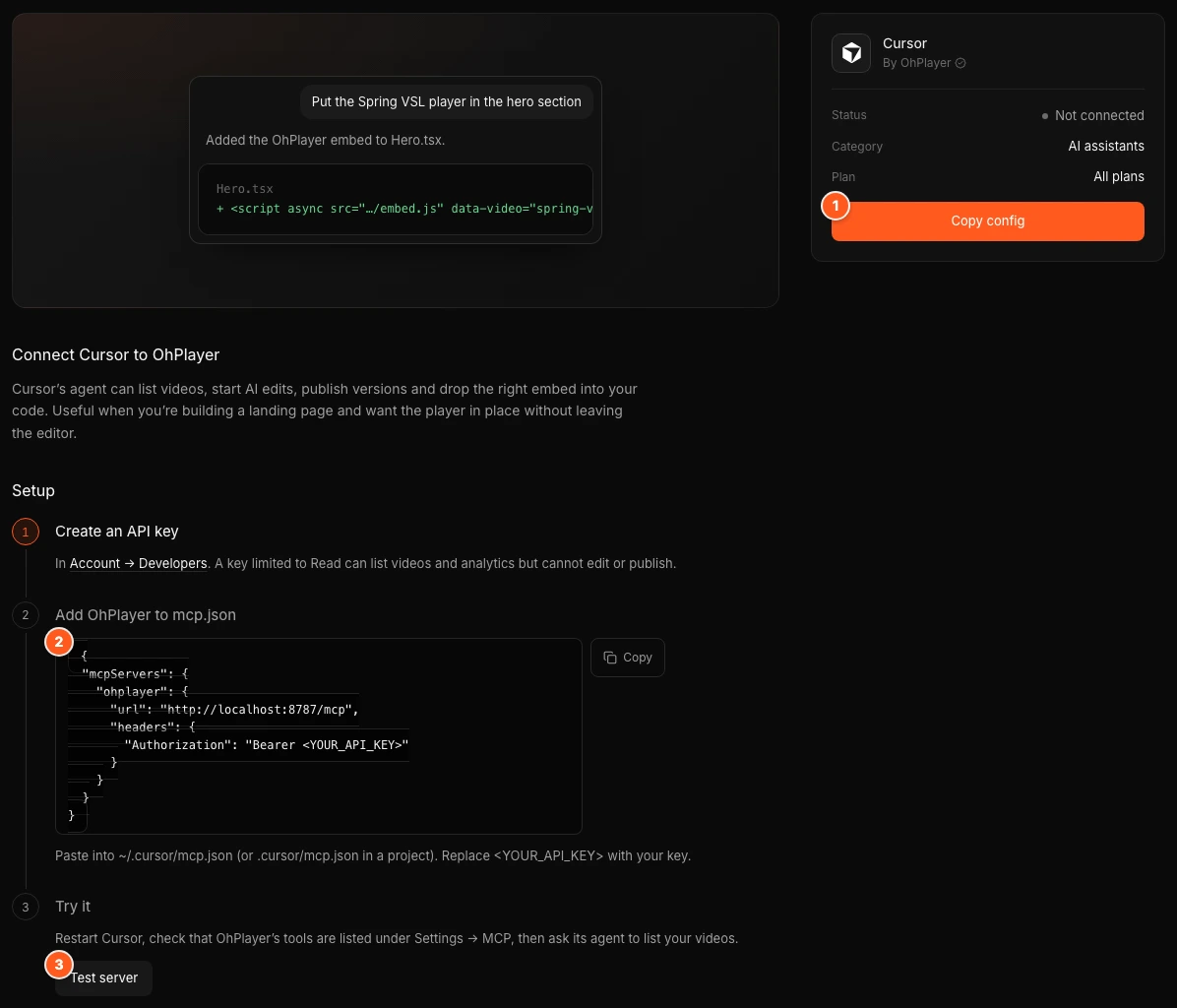
mcp.json, marker 3 is Test server.Add OhPlayer to your tool
Paste this into ~/.cursor/mcp.json, or into .cursor/mcp.json inside a project:
{
  "mcpServers": {
    "ohplayer": {
      "url": "https://api.ohplayer.com/mcp",
      "headers": {
        "Authorization": "Bearer <YOUR_API_KEY>"
      }
    }
  }
}
Restart Cursor. Open Settings → MCP and check that OhPlayer's tools are listed.
Run this in your terminal:
claude mcp add --transport http ohplayer https://api.ohplayer.com/mcp --header "Authorization: Bearer <YOUR_API_KEY>"
Use the server URL https://api.ohplayer.com/mcp and send the header Authorization: Bearer <YOUR_API_KEY> with each request. Windsurf, VS Code, Zed and other tools that support remote MCP servers can use this.
Test it
On the setup page, click Test server. You see "MCP server answered with 13 tools." Then ask your assistant, for example: "List my OhPlayer videos with the most plays this week."
What the assistant can do
OhPlayer's MCP server has 13 tools. They let an assistant:
- list your videos and read one video's versions and captions
- read the watch curve, funnel, transcript and leads
- propose a recut from the transcript, encode it and publish the new version
- replace a video with another video from your account
- get the embed snippet
- import a video from a URL or a cloud source, and check the job
An assistant cannot upload a file from your computer, and it cannot start the AI edit (the Clean or Bold edit in the Studio). Use the Studio for those. See AI edit. Applying a recut uses AI credits.
Ask before publishing
Tell your assistant to show you a recut and wait for your approval before it publishes.
If it does not work
- Check that the key was copied in full and that no quotes or spaces are left in it.
- Check that the key is still listed in Account → Developers. A revoked key stops working immediately.
- Click Test server on the setup page to see whether OhPlayer answers.
Next steps
Was this page helpful?
Your answer stays in your browser. Nothing is sent to us or to anyone else.