Publish and share
Publish puts your changes live, and Share gives you the link and the embed code.
Draft and live
What viewers see is the live version. Changes you make in the Studio save as a draft first. This includes player settings, captions, CTAs, playgates, HTML reveals and the thumbnail. The top bar shows Saving draft and then Draft saved.
Nothing reaches viewers until you publish. Then every embed and the watch page show the new version at once.
The video title and description are different. They save as soon as you change them, and viewers see them straight away.
Publish your changes
Click Publish in the Studio top bar. You see “Live. Every embed is serving this version.” The top bar then shows Live.
Publish is off when there is nothing to publish. Its tooltip says “No unpublished changes. The live embed already matches.”
On the free preview, the Share window is called Put “your video name” on your page and offers the 14-day trial instead of the link and embed. Pick Pro or Lite, click Start 14-day Pro trial (or Lite), and add your card on Stripe's secure page. You come back to Share with your trial on. See Start your trial to publish.
After a plan or trial ends, Publish is paused until you choose a plan. See When your plan ends.
Open Share
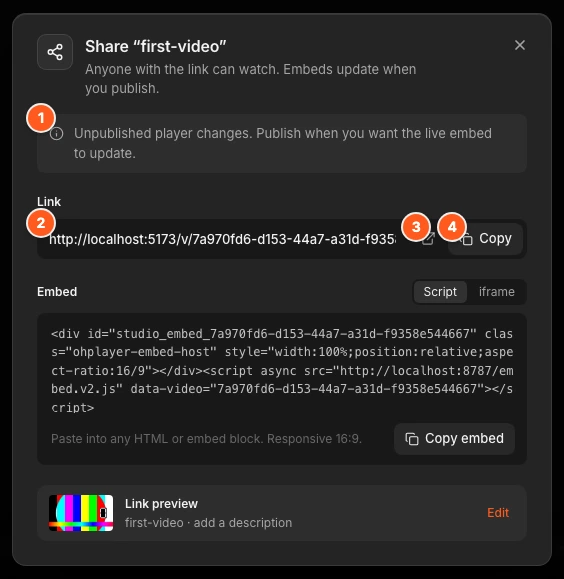
Click Share in the top bar. The window is called Share “your video name”. It says “Anyone with the link can watch. Embeds update when you publish.”
A note at the top tells you the state: “Unpublished player changes. Publish when you want the live embed to update.” or “Live embed matches your edits.”
Copy the link
Under Link, click Copy to copy your watch page address. The button opens the page in a new tab when you click the arrow icon (Open live page).
Anyone with the link can watch. They do not need an account. See What your viewers see.
Copy the embed code
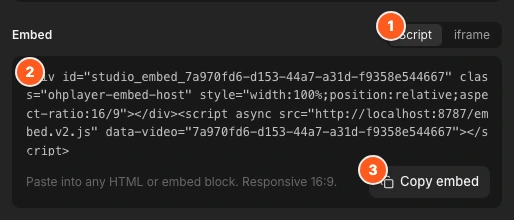
Under Embed, choose Script (the default) or iframe, then click Copy embed. Paste the code where the video should appear. See Embed on your site for steps for WordPress, Webflow, Framer and Shopify.
Use Script unless your site blocks scripts. It keeps ad tracking and works with HTML reveals. The embed always shows your last published version, so you paste it once.
Set the title and description
Under Link preview, click Edit. Change the Title (up to 120 characters) and the Description (up to 160, with a counter). Viewers see them on your watch page. If the video has no thumbnail, click Set poster to choose one. Click Done when you finish.
The first time you share, during the quickstart, the window is simpler. It has Embed and Link tabs, and iframe is under More options.
When you cannot copy the embed yet
Copy embed is off until the video and its settings are ready. The note at the top says why.
| Message | What it means |
|---|---|
| The player is still encoding. Embed unlocks when this version is ready. | Wait for the video to finish. |
| Fix the player settings before copying the embed. | A setting has an error. Open the Studio tool that shows it and fix it. |
| A new version is encoding. The embed still plays the last ready cut. | A new cut or replacement is being prepared. The old one keeps playing. |
| The new edit didn’t finish. The embed still plays your live video. | An AI edit or cut failed. Nothing changed for viewers. |
| Replacement failed. The embed still plays the previous video. | A replacement failed. Nothing changed for viewers. |
Preview and publish an earlier version
Version history lists your versions. Open it from More actions or press H.
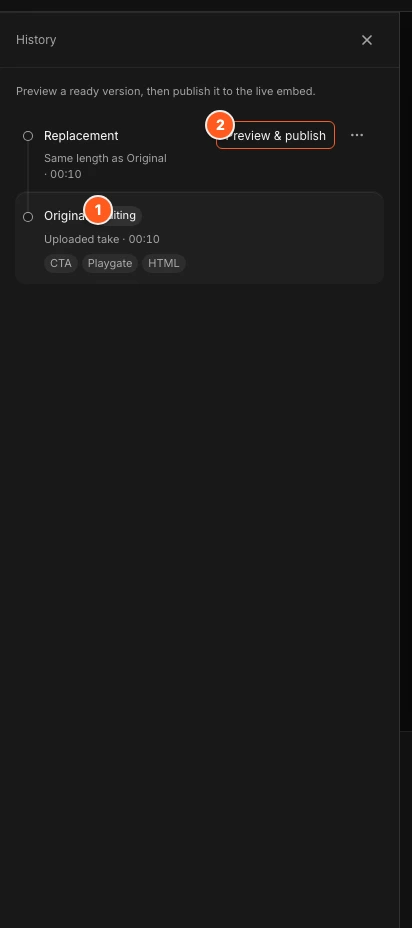
Click Preview & publish on a row to watch that version first. The live embed stays as it is until you click Publish this version.
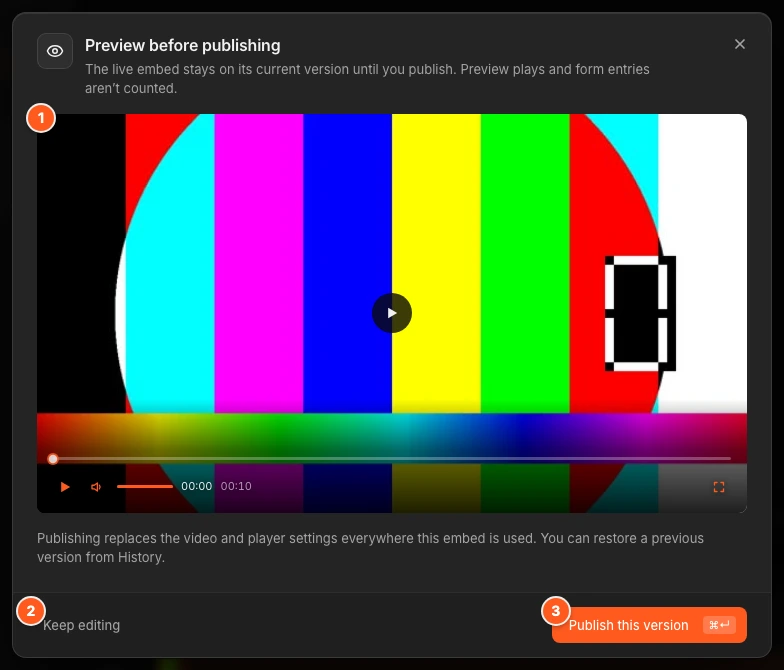
Preview plays and form entries are not counted. See Versions and History for statuses and for what History keeps.
Paste once
The embed code never changes. Later cuts, captions and settings reach your site when you publish, without editing your page.
Next steps
Was this page helpful?
Your answer stays in your browser. Nothing is sent to us or to anyone else.