- Pro
Lead forms (playgates)
A playgate pauses your video and asks the viewer for their details.
Turn on the playgate tool
Click Playgate in the Studio tool dock, or press E. Turn on the Enable playgate switch in the panel header. OhPlayer adds a playgate and opens it for editing.
You can have up to four playgates per video. Use Add a playgate in the list to add more. The list says “4 playgates max on this video.” when you reach the limit.
Set when it shows
- Shows
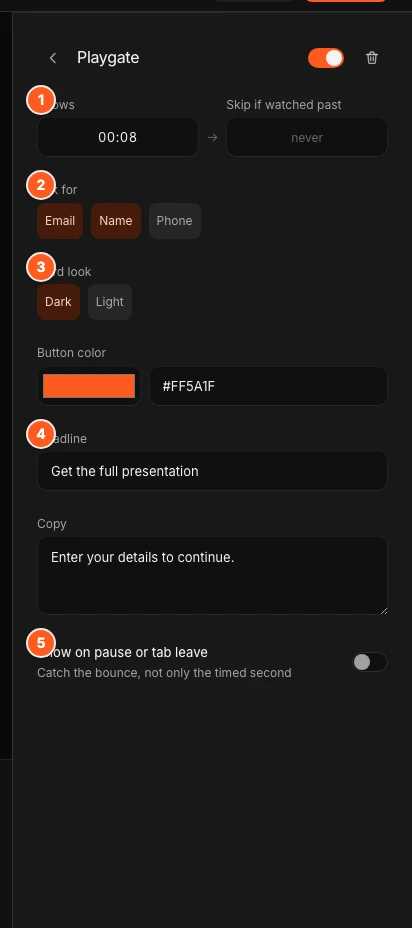
- The time the form appears. A new playgate starts at the playhead, or at 0:08 if the playhead is at the start.
- Skip if watched past
- If a viewer has already watched past this time, the form does not interrupt them. Empty means never skip (the box says “never”).
Choose what to ask for
Under Ask for, turn on email, name and phone. Pick at least one. You see “Choose at least one field.” if none is on. Every field you pick is required in the form.
Write the form
- Card look
- dark or light.
- Button color
- The colour of the form’s accent.
- Headline
- The main line. A new playgate says “Get the full presentation”.
- Copy
- The line under it. A new playgate says “Enter your details to continue.”
Catch viewers who leave
Turn on Show on pause or tab leave to show the form when a viewer pauses before the Shows time. The player pauses when a viewer switches to another tab, so this also catches them as they leave.
Publish
Playgate changes save as a draft. Click Publish to put them live. See Publish and share.
What viewers see
The video pauses and the form covers it. The form has a required checkbox: “I agree to share my details with the owner of this video to access the video.” The button says Play.
Viewers can also click Skip in the corner to carry on without filling in the form. Treat a playgate as a strong invitation, not a lock. A viewer who submits or skips is not asked again for that playgate until the page reloads.
If saving fails, the viewer sees “Your details could not be saved. Please try again.” and the button says Try again.
Where the leads go
Submissions are saved as leads. Find them in Analytics and export them. See Leads and exports. To send them to other tools as they arrive, see Integrations overview.
Remove a playgate
Open the playgate, click the trash icon, and confirm Delete playgate? with Delete. To pause all playgates without deleting them, turn off Enable playgate.
Plans
Playgates and leads are on Pro. On Lite the Playgate button shows a Pro badge and opens an upgrade message. If you move from Pro to Lite, your playgates are saved but paused, and viewers see the plain video. Your leads are kept. See Plans and limits.
Next steps
Was this page helpful?
Your answer stays in your browser. Nothing is sent to us or to anyone else.